All too often, my baseVISION (IR) colleagues and I find compromised cloud accounts where many security ‘signals’ were missed—both from a prevention and detection perspective. In this blog post, I want to share some motivation and tips to help you adopt Entra ID Protection risk-based Conditional Access policies to increase your tenant’s security posture, and ensure you don’t miss the next obvious account breach.
Real-world motivation
Anyone who has seen an AiTM campaign in the wild will probably notice the following details from the Entra ID sign-in logs of a compromised account:
- ResourceDisplayName:
OfficeHome - UserAgent:
axios/1.13.2
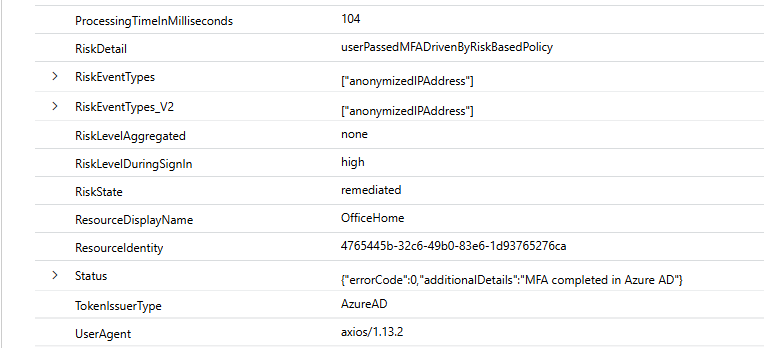
The problem? Even though Entra ID Protection flagged the sign-in as ‘High’ risk, the user could still sign in because MFA automatically remediated the sign-in risk (userPassedMfaDrivenByRiskBasedPolicy).
The bummer?

The environment had a Conditional Access policy in place that would have blocked users with high sign-in risk, but the policy was only in report-only mode, so the user could sign in without any issues.
The bigger bummer?
This is not a one-off case, but a pattern I see in many environments during assessments and investigations. Entra ID Protection is doing its job, but the right actions are not being taken to prevent the next breach. Often, Conditional Access administrators, Security Engineers, and SecOps teams are not aware of the ‘signals’ and ‘actions’ Entra ID Protection provides, or how to use them in their environment. Frequently, there is also fear of putting a policy in place that might block users and uncertainty about the impact.
So, in the next few minutes, I want to share some tips on how to collect evidence and gain confidence to implement the appropriate Entra ID Protection policies for your environment.
Entra ID Protection 101
Here are the key facts I usually highlight when talking about Entra ID Protection:
| Category | Sign-In Risk | User-Risk |
|---|---|---|
| Risk Description | Risk detections for a particular sign-in session based on ASN, IP Address or other information. | Risk detection for a user’s behavior or sign-in token activity, after authentication. |
| Example Risk Detections | Activity from anonymous IP address Malicious IP address Impossible travel Unfamiliar sign-in properties | Anomalous Token (user) Attacker in the Middle Leaked credentials Suspicious API Traffic |
| Conditional Access Self-Remediation | Require fresh Microsoft Entra multifactor authentication / authentication strength | Require a secure password change or prompt for re-authentication as part of ‘Require Risk Remediation’ (for passwordless users) |
| Possible Risk Levels | None (Clear) Low Medium High | None (Clear) Low Medium High |
What is not so obvious:
- Besides self-remediation, admin remediation options also exist, such as dismissing the user risk or issuing a temporary access pass for the end user in case of user risk.1
- Sign-in risk cannot be dismissed, as it is evaluated for each sign-in session individually.
- For Entra B2B guest accounts, the risk is evaluated in the user’s home tenant. Remediation also needs to happen in the home tenant.2
- Sign-In Logs and the Risk Detections report are also available for non-Entra ID P2 / E5 customers with limited data (Entra Portal > ID Protection > Dashboard > Risk detection), making them a very helpful resource for incident response teams.
Evidence Collection and Impact Analysis
Nevertheless if you already forward Entra ID protection alerts to Sentinel or Log Analytics, you can also use the built-in report to conduct an analysis of historical Entra ID protection alerts.
Leverage Existing Evidence (Log Analytics / Sentinel)
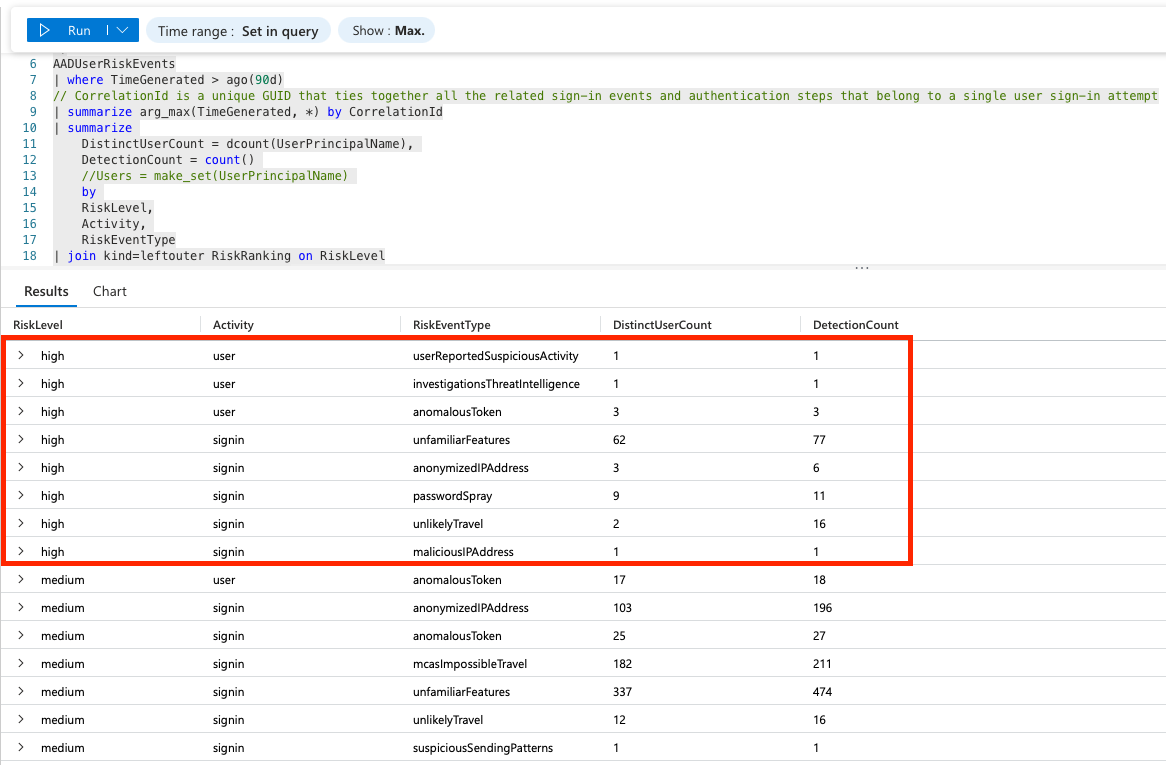
If you have already connected your Entra ID tenant to an Azure Log Analytics (Sentinel-enabled) workspace via Diagnostic settings, you can use the following KQL query to get insights about the detections (AADUserRiskEvents) in your environment:
let RiskRanking = datatable (RiskLevel:string, RiskRank:int)[
    "low", 1,
    "medium", 2,
    "high", 3
];
AADUserRiskEvents
| where TimeGenerated > ago(90d)
// CorrelationId is a unique GUID that ties together all the related sign-in events and authentication steps that belong to a single user sign-in attempt
| summarize arg_max(TimeGenerated, *) by CorrelationId
| summarize
    DistinctUserCount = dcount(UserPrincipalName),
    DetectionCount = count()
    //Users = make_set(UserPrincipalName)
    by
    RiskLevel,
    Activity,
    RiskEventType
| join kind=leftouter RiskRanking on RiskLevel
| sort by RiskRank, Activity desc
| project-away RiskRank, RiskLevel1
The results reveal, only 85 distinct users had a user-risk or sign-in risk of high within the last 90 days:
Collect Evidence about Recent Entra ID Protection Detections
If you don’t have the data in a Log Analytics workspace yet, you can also export the recent Entra ID Protection detections (90 days) from the Entra ID portal and analyze the data in Azure Data Explorer (ADX) or Excel. I prefer the ADX option because it handles large data sets and lookups from other sources very well.
From the Entra Portal you can export the risk detection events as CSV:
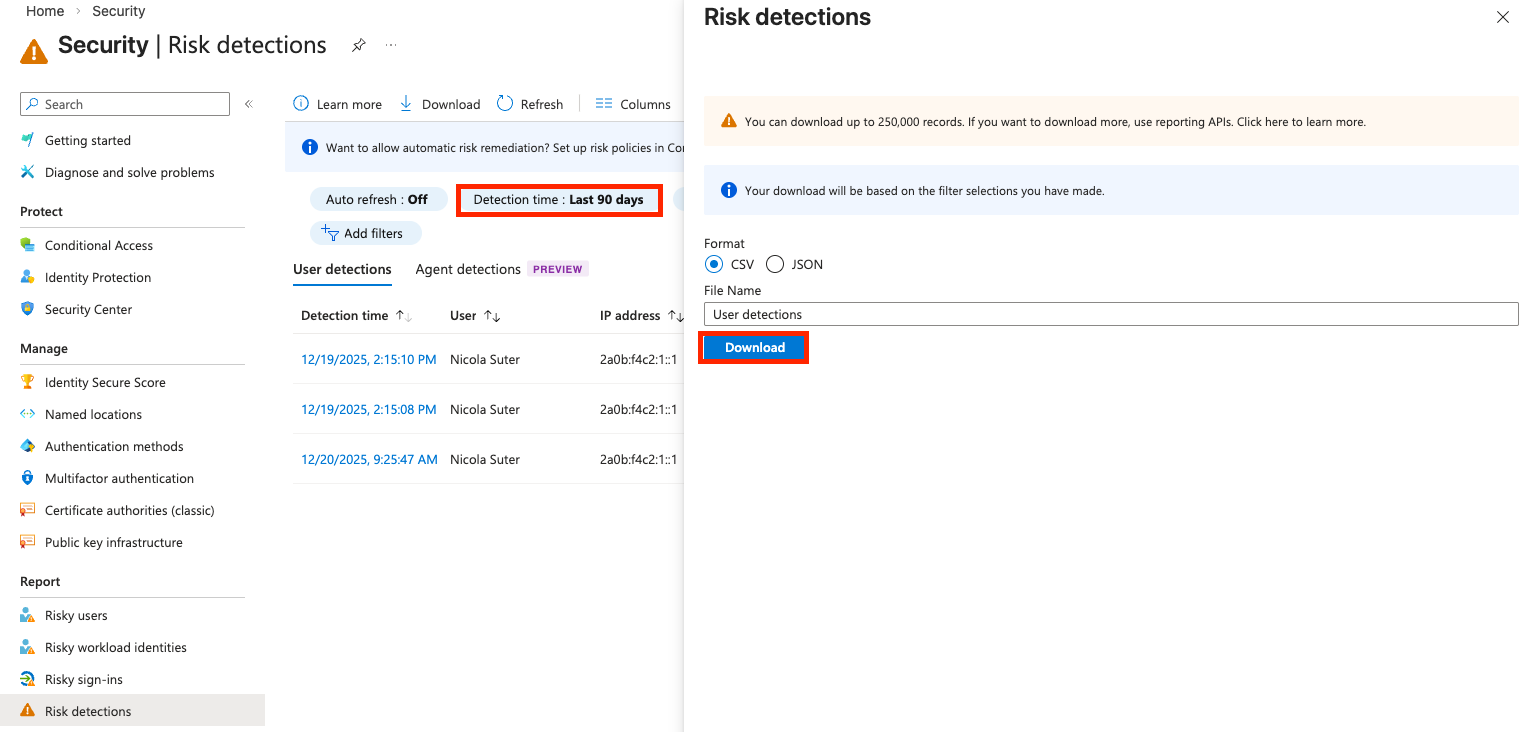
Create a free Azure Data Explorer cluster (https://aka.ms/kustofree) and ingest the data to analyze it and get insights about the ‘signals’ that Entra ID protection is providing in your environment.
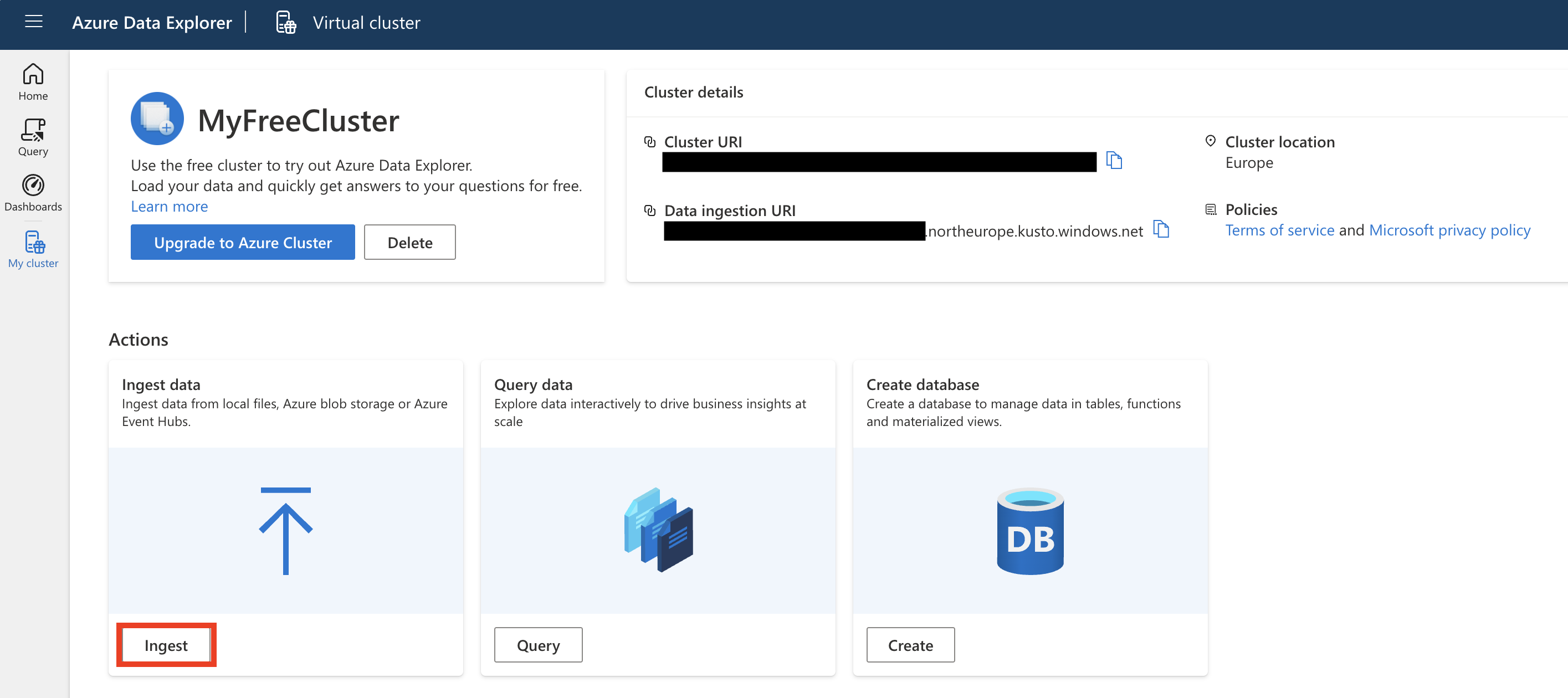
Optionally create a new database and select ingest:
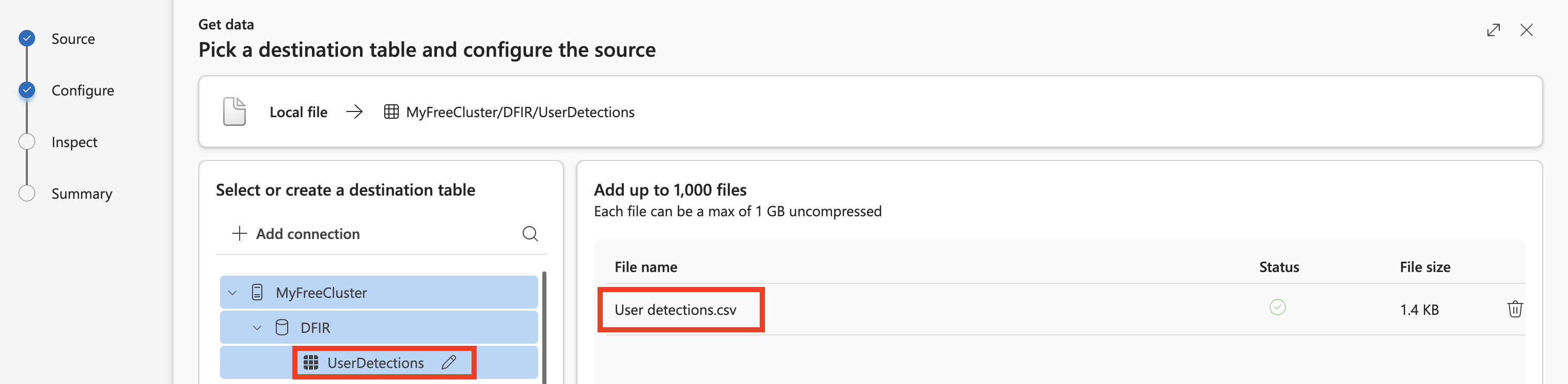
Select ‘Ingest a local file’ and specify the previously downloaded CSV:

Et voilà—we have the CSV available. Because the column names contain a lot of spaces, let’s normalize them with KQL later.
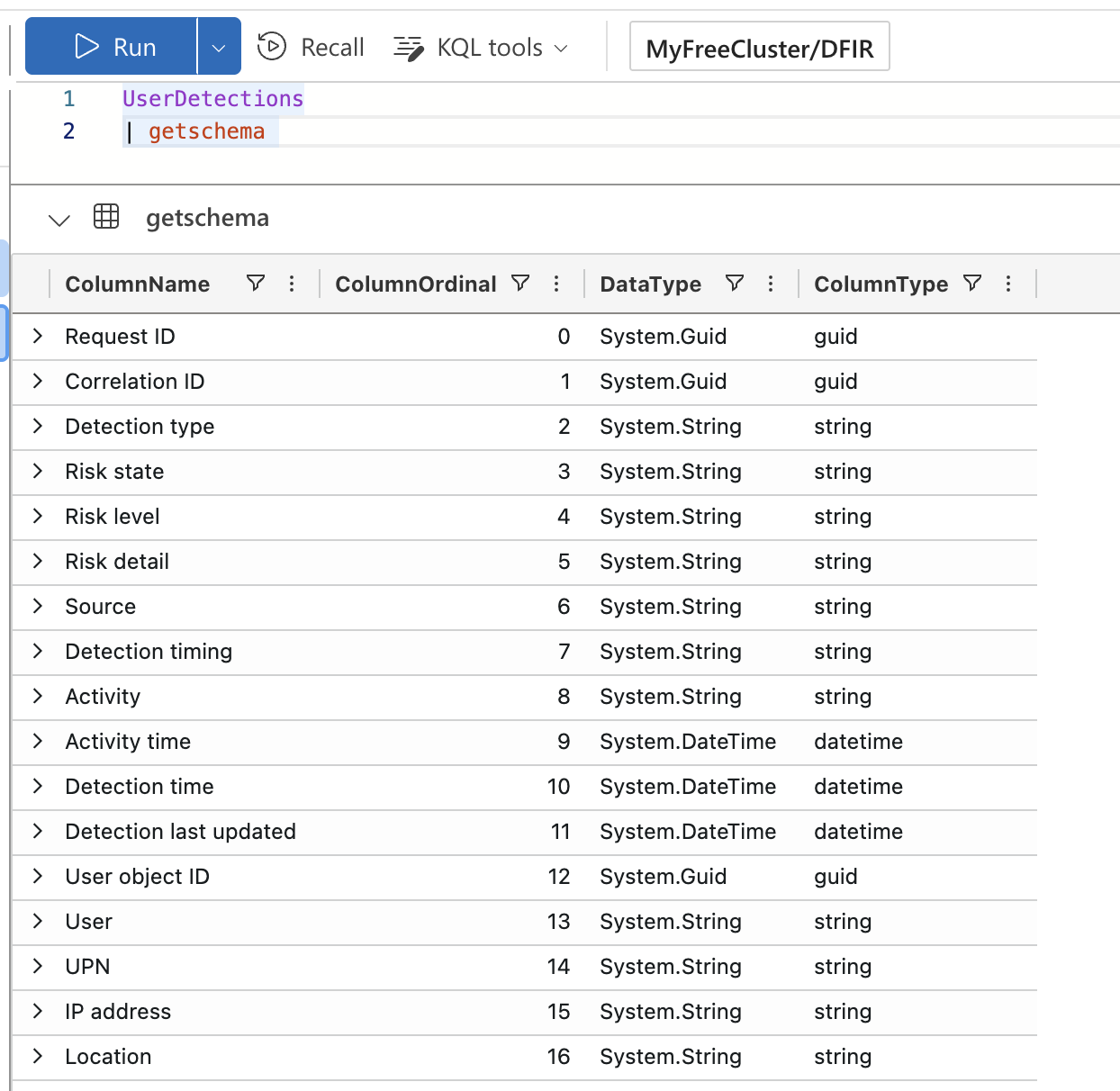
You can use the following KQL query to get insights about the detections in your environment:
UserDetections
// Rename all Columns to Proper KQL refs
| project-rename
    RequestId = ['Request ID'],
    CorrelationId = ['Correlation ID'],
    DetectionType = ['Detection type'],
    RiskState = ['Risk state'],
    RiskLevel = ['Risk level'],
    RiskDetail = ['Risk detail'],
    DetectionTiming = ['Detection timing'],
    ActivityTime = ['Activity time'],
    DetectionTime = ['Detection time'],
    DetectionLastUpdated = ['Detection last updated'],
    UserObjectId = ['User object ID'],
    IPAddress = ['IP address']
// Only get the most recent detection per CorrelationId
// CorrelationId is a unique GUID that ties together all the related sign-in events and authentication steps that belong to a single user sign-in attempt
| summarize arg_max(DetectionTime, *) by CorrelationId
| summarize
    DistinctUserCount = dcount(User),
    DetectionCount = count(),
    Users = make_set(UPN)
    by
    RiskLevel,
    Activity,
    DetectionType

Assess your Maturity and Risk Appetite
Some well-thought-out questions when designing Risk-Based Conditional Access Policies include aspects like:
Are you enforcing managed and compliant devices for accessing Entra ID protected resources? If not, blocking high-risk sign-ins not originating from these would be a good starting point.
Have you already adopted phishing-resistant authentication? If not, self-remediation of sign-in risk with MFA provides limited protection against AiTM phishing attacks, and you might want to block high sign-in risk.
Do you want to allow end users to report suspicious activity? This is applicable if you use Microsoft Authenticator or telephone-based MFA. This setting is Microsoft-managed and currently disabled3; you might want to reassess whether you want to use it.4
SecOps Capabilities: Do you have playbooks to investigate and triage users with high user risk, or will you simply block the user and let them chase down your helpdesk staff?
Based on these considerations and the telemetry you collected about previous detections, you can plan and implement your risk-based Conditional Access Policies. My personal (opinionated) recommendation is still to block high user risk and sign-in risk. For most tenants, the telemetry confirms that this impacts only a small number of users. Furthermore, the security gain outweighs the fear of unintended account lockouts.
⚠️ Before enabling any policies based on your Conditional Access processes, make sure to investigate and dismiss any open user-risk’s (Entra Portal > ID Protection > Risky Users).
TEST!
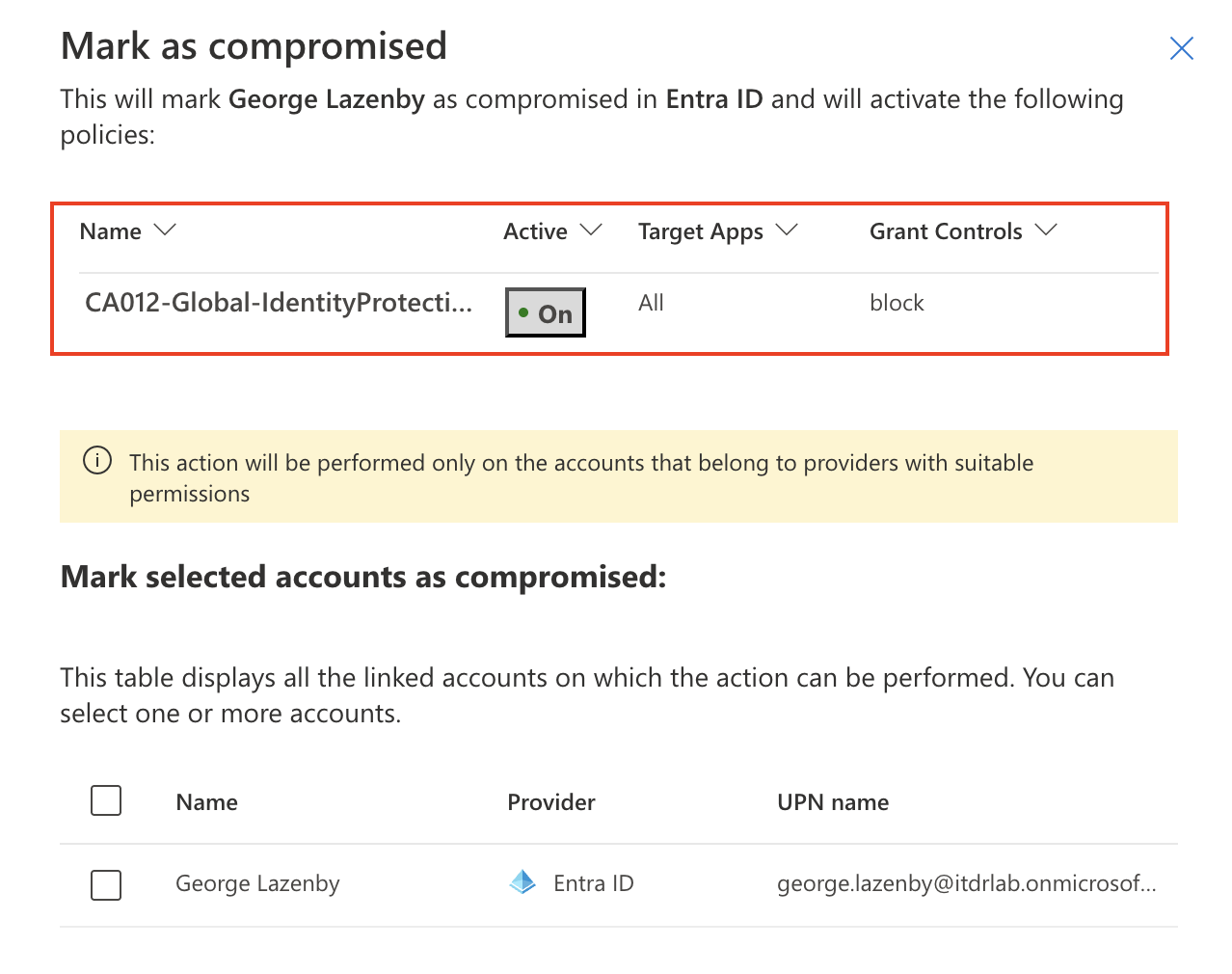
To prove that the policies actually work, you can test the case of user risk by either marking the user as compromised in Defender XDR or reporting suspicious activity via the Authenticator App.

Defender XDR automatically detects any CA policies targeting User-Risk and includes them in the context, indicating how the user will be affected:
To simulate sign-in risk, you can try to raise it using IP address anonymization services or the Tor browser.
Conclusion
Entra ID Protection policies in enforcement mode can be scary to implement, but with the right evidence collection and impact analysis, you can gain confidence to put the right policies in place, increase your Entra ID tenant’s security posture, and reduce backpressure on your SecOps team because you can block the sign-in of your next compromised account automatically.
Key takeaway: Collect evidence, analyze your environment, and move your Risk-Based Conditional Access policies from report-only to enforcement mode to proactively stop account breaches.
References
- (https://learn.microsoft.com/en-us/entra/id-protection/howto-identity-protection-remediate-unblock#administrator-manual-remediation)
- https://learn.microsoft.com/en-us/entra/id-protection/concept-identity-protection-b2b
- https://learn.microsoft.com/en-us/entra/identity/authentication/concept-authentication-default-enablement
- https://learn.microsoft.com/en-us/entra/identity/authentication/howto-mfa-mfasettings#report-suspicious-activity
Microsoft maintained list of all risk detections: https://learn.microsoft.com/en-us/entra/id-protection/concept-identity-protection-risks.
Bonus
Emails
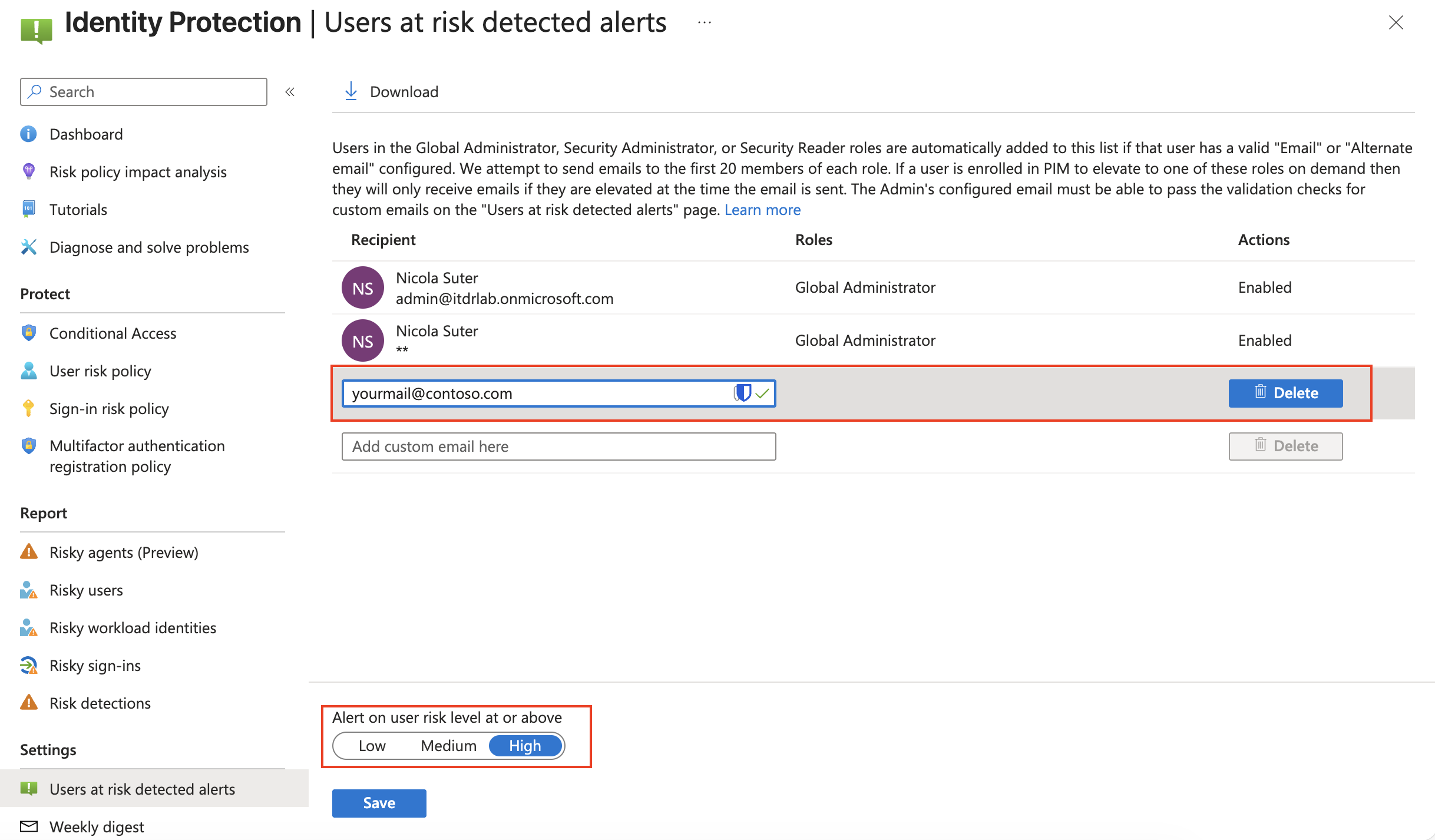
Entra ID Protection alerts come with default email notifications for user risk events and selected Entra ID roles. You can add your custom email address, e.g., a ticket system if necessary. The setting is found under: Entra Portal > ID Protection > Settings > Users at risk detected alerts:
And if you do not like getting these weekly digest emails about Entra ID Protection:
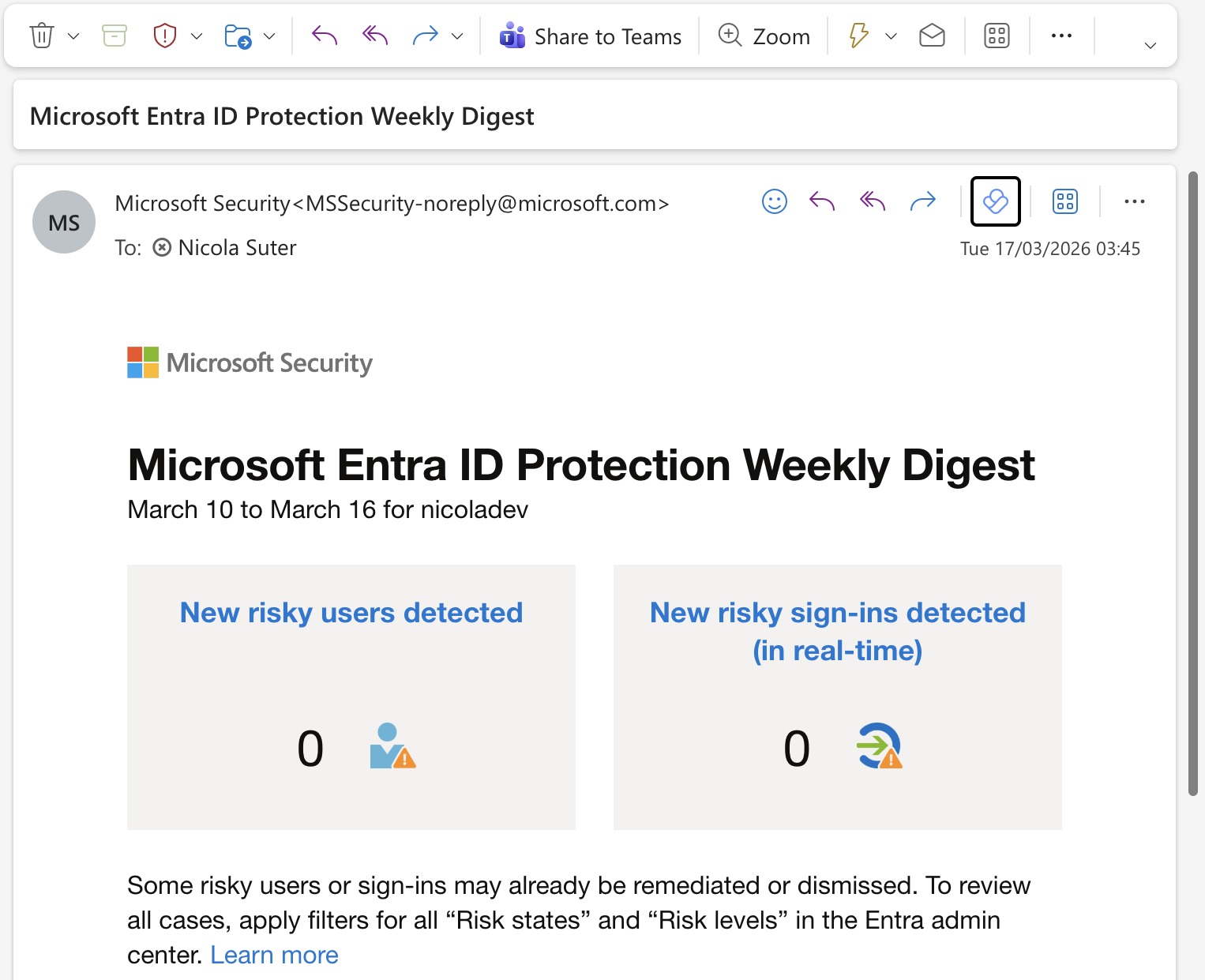
You can find the option to disable them under: Entra Portal > ID Protection > Settings > Weekly digest.
Workload Identities
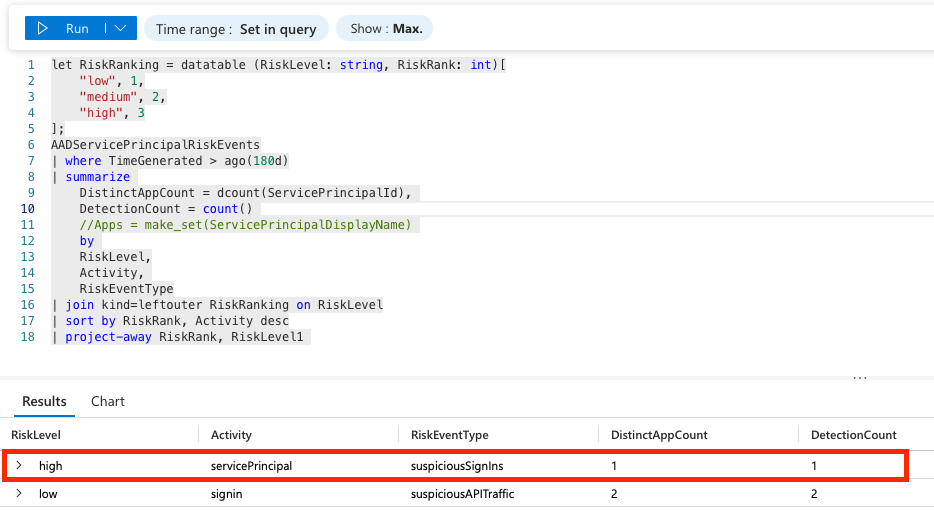
You can use the same approach for your Workload Identities if you have the necessary add-on licenses, to protect your crown jewel service principals: