While troubleshooting unexpected re-authentication prompts in Entra ID, I stumbled over a legacy setting I had almost forgotten existed. The environment was piloting a new set of Conditional Access policies, and some pilot users received daily re-authentication prompts in Microsoft 365 apps, although no Conditional Access policy was forcing this.
Entra ID Protection was the first suspect, but no risk detections were present for the affected users. The actual reason was hiding in plain sight in the Entra sign-in logs, in the SessionLifetimePolicies field.
Inspecting SessionLifetimePolicies#
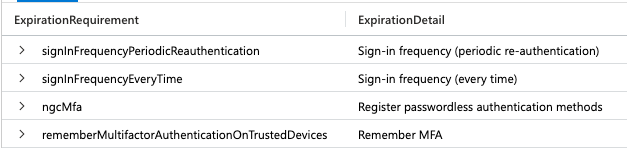
A quick KQL query against SigninLogs reveals every distinct expirationRequirement reason observed in the tenant:
SigninLogs
| mv-expand parse_json(SessionLifetimePolicies)
| extend ExpirationRequirement = tostring(SessionLifetimePolicies.expirationRequirement)
| extend ExpirationDetail = tostring(SessionLifetimePolicies.detail)
| distinct ExpirationRequirement, ExpirationDetail
The sessionLifetimePolicy resource is also documented as part of the Microsoft Graph API1.
Legacy MFA settings#
The rememberMultifactorAuthenticationOnTrustedDevices value stood out and reminded me of the Azure AD days and the legacy MFA settings. Sure enough, the Remember multi-factor authentication on trusted devices setting was still enabled:
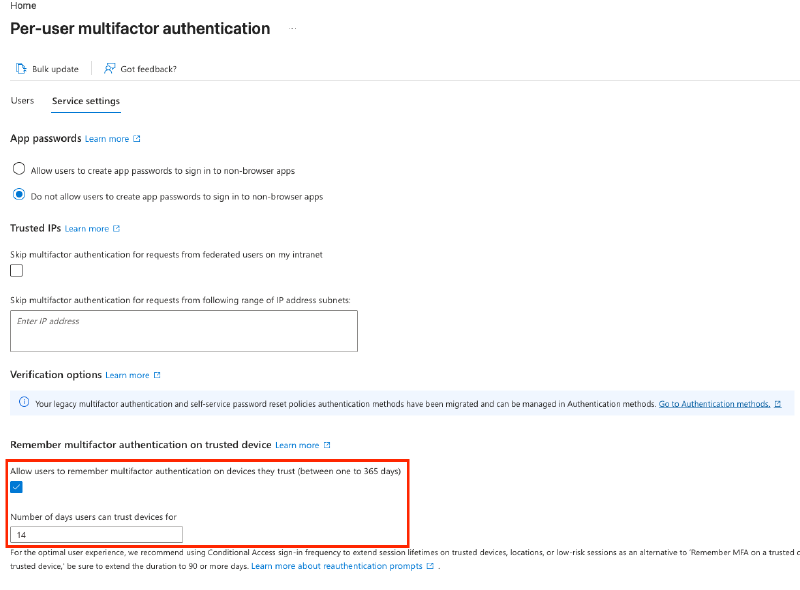
To quickly find the legacy MFA settings, you can use cmd.ms and search for legacy MFA.
A quick check on Microsoft Learn confirmed the behavior:
Setting this value to less than 90 days shortens the default MFA prompts for Office clients, and it increases reauthentication frequency. When you use this setting in combination with Show option to remain signed in or Conditional Access policies, it might increase the number of authentication requests.2
So the unexpected prompts were caused by the legacy MFA setting silently overriding the session behavior expected from the new Conditional Access policies.
Finding affected sign-ins#
Use the following query to list every sign-in affected by this specific expiration reason:
SigninLogs
| mv-expand parse_json(SessionLifetimePolicies)
| where SessionLifetimePolicies.expirationRequirement == "rememberMultifactorAuthenticationOnTrustedDevices"Takeaway#
The SessionLifetimePolicies column in SigninLogs is very helpful for identifying why a user was prompted to re-authenticate. And when assessing existing Conditional Access policies, always check the legacy MFA settings as well.
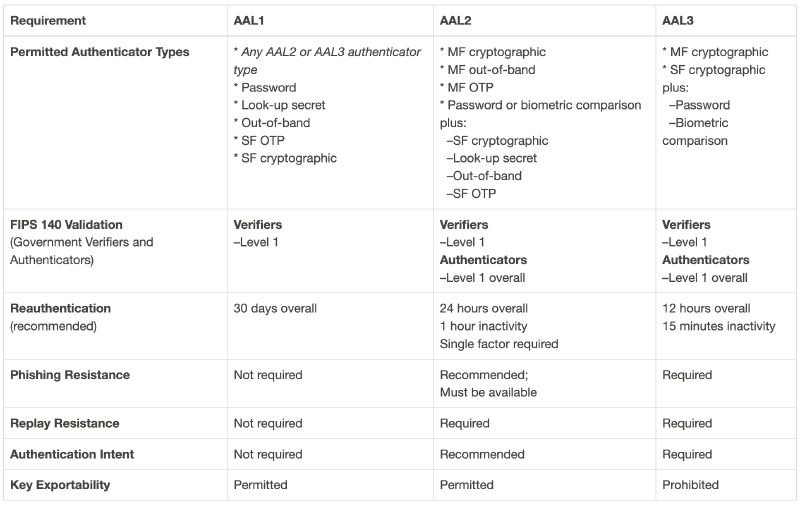
P.S.: I don’t want to start a debate about re-authentication requirements, but NIST3 provides solid guidance on how to meet the different Authentication Assurance Levels (AAL):
Microsoft Learn – sessionLifetimePolicy resource type ↩︎
Microsoft Learn – Reauthentication prompts and session lifetime for Microsoft Entra multifactor authentication ↩︎
NIST SP 800-63 Digital Identity Guidelines – Summary of requirements by AAL ↩︎